Your crypto is not trapped inside your old phone. The real question is whether your access path survives the switch. Changed phones or lost one? In this article you will learn how walllet.com recovery works, when your wallet can be restored, and what to do if your device is stolen.
If you use walllet.com and get a new phone, you usually do not import the wallet with a seed phrase. You sign in on the new device with the same Apple or Google account tied to your passkey flow. If your phone is lost, your funds stay onchain. Recovery depends on whether that passkey backup path still exists.
TL;DR
Changing phones does not move your crypto. Your assets remain onchain, and the question is whether you still control the credentials that let you access them.
With walllet.com, the usual path is not “import wallet with 12 words.” It is restoring access through the same Apple or Google account and passkey setup.
If your phone is stolen, secure the device first through Apple’s Lost Mode or Google’s Find Hub before doing anything else.
If your balance looks missing on the new phone, check the address, selected account, network, and token display before assuming the wallet is gone.
If both the device and the only valid passkey backup path are gone, walllet cannot reset or recover your keys for you. That is the self-custody tradeoff.
Losing a phone creates the kind of panic that makes people tap the wrong thing fast. In crypto, that panic usually sounds like this: “How do I import my wallet on my new phone?” or “My phone is gone, are my funds gone too?” Those sound like one question, but they are really two. One is about access. The other is about actual loss. They are not the same.
Related: Where Is Your Crypto Actually Stored? Wallet vs Blockchain Explained for Beginners
With a traditional seed phrase wallet, “import” usually means typing in the same 12 or 24 words on a new device. With walllet.com, the model is different. walllet is self-custodial and seedless, so the usual path is restoring access through your passkey and device ecosystem, not pasting a recovery phrase into a new app. walllet’s migration guide even separates “create a new address and transfer assets” from “import the same keys,” which is exactly why this topic needs its own article.

What situation are you actually in?
Situation | What it usually means | Best next move |
You bought a new phone and still control your Apple or Google account | You are likely restoring access, not migrating assets | Sign in to the same account, install walllet, and use the passkey flow |
You deleted the app by mistake | The app is gone, not the crypto | Reinstall the app and restore access |
Your phone was lost or stolen, but your account backup path still exists | Your funds are still onchain, but you need to secure the old device first | Lock or erase the old device, then set up the new one |
Your balance looks empty on the new phone | Often a network, account, or token-display issue | Verify the address on a block explorer and check the selected network |
Your phone is gone and you also lost the only passkey backup path | This is the real danger zone | Recovery may be impossible in a self-custody model |
Accessing walllet on a new device depends on the same Apple or Google account and passkey setup, while Google and Apple document passkey syncing through Google Password Manager and iCloud Keychain. walllet does not store your private keys or passkeys on its own servers.
First, remember this: your crypto is not inside the phone
This is the mental reset that saves people from bad decisions. Your crypto is not sitting in the app like photos in a gallery. The blockchain records ownership. Your phone is one place from which you access and approve actions. So if the phone disappears, your assets do not automatically disappear with it. What matters is whether you still have a valid way to prove control.
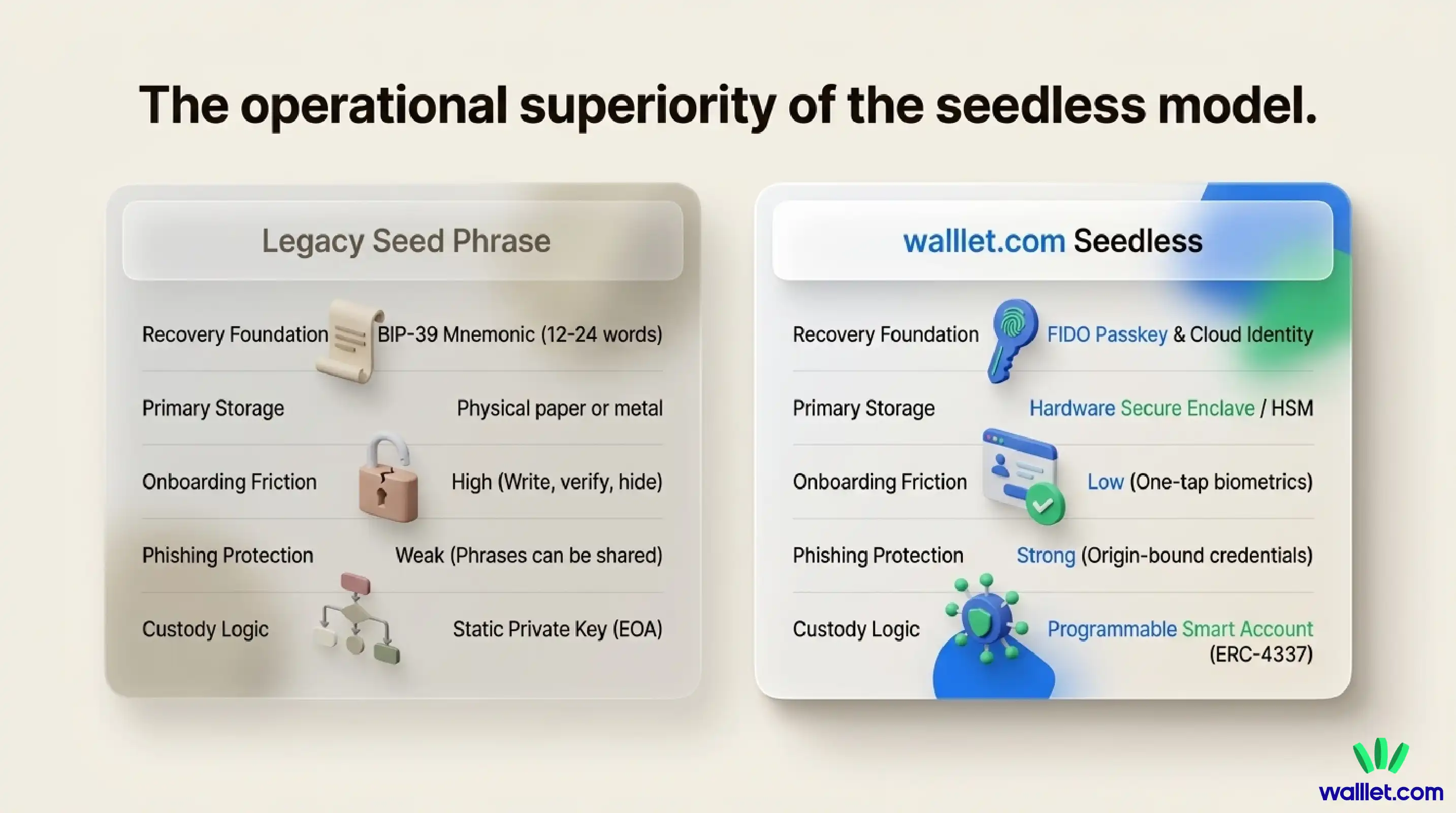
That distinction is especially useful with walllet.com because the product is built around reducing seed phrase friction. The upside is a cleaner, more human recovery experience for many users. The hard truth is that self-custody still has edges. If you lose both the device and the credential path that can restore the passkey, there may be nobody to call for a magical reset.
Related: What Is a Passkey Wallet? How Passkeys Make Crypto Wallets Simpler and Safer
How to use walllet.com on a new phone
If your old phone still exists and you are simply upgrading, this is the calmer path.
1. Sign in to the same Apple or Google account
For walllet, that is the backbone of the recovery flow. On iPhone, the relevant piece is iCloud Keychain and the Passwords app. On Android and Chrome, it is usually Google Password Manager. Saved passkeys can be used across devices where you are signed in with the same account, and Apple’s passkey security model relies on iCloud Keychain with Apple Account protections such as two-factor authentication.
2. Make sure passkey sync was actually enabled
This is the part many people assume instead of checking. walllet’s iOS setup guide says iCloud Keychain and Passkeys need to be on, and walllet’s Android guide says recovery to a new phone depends on being signed in to the same account with backup or sync turned on. Google also notes that Android passkeys are securely backed up and synced across devices through Google Password Manager.
3. Install walllet from the official source and follow the passkey sign-in flow
Do not treat this like an old-school seed phrase import screen. walllet’s product page describes the new-device experience as signing in on a new device so the walllet passkey is restored through the platform credential path, without a seed phrase. That is the product promise, and it is the behavior users should expect.
4. Verify that you are in the same wallet, not a fresh one
This is where people get ambushed by false panic. If you create a new wallet instead of restoring access to the existing one, you may see a perfectly healthy empty address and think your funds vanished. Check your public wallet address against a previous transaction, a saved contact, or a block explorer. If the address matches, you are in the right place.
5. If the balance looks wrong, troubleshoot before panicking
A missing balance is often not a missing wallet. walllet’s troubleshooting guidance for not showing balance points to four usual suspects: wrong address, wrong network, wrong selected account, or a token that exists onchain but is not currently displayed in the app. Start with the explorer. It is the source of truth. Then check the network, account, and token visibility.
Before You Change Your Phone
Before switching devices, make sure you know where your passkey is stored. Depending on your setup, your passkey may be managed by:
Apple Passwords / iCloud Keychain
Google Password Manager
Another supported password manager
Before removing your old device: 1. Confirm your passkey is available 2. Make sure you can access the same account 3. Test login on the new device 4. Keep your old device available until migration is complete
Importing walllet.com to a New iPhone
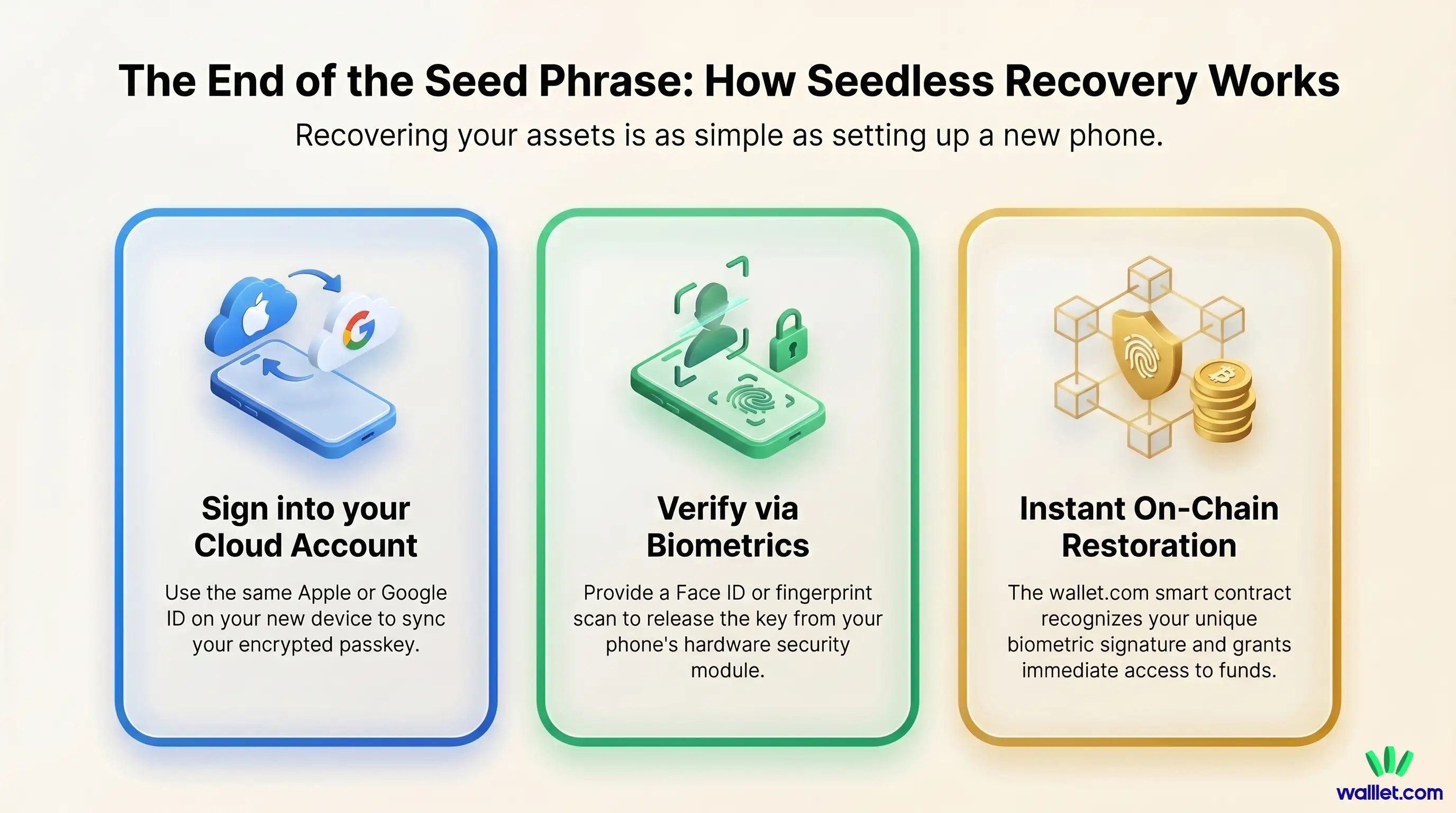
For users within the Apple ecosystem, the process of moving walllet.com to a new iPhone is integrated into the native iOS restoration flow. Because walllet.com is non-custodial and seedless, the "import" is actually a re-linking of the existing hardware credential stored in the cloud.
Prerequisites for iOS Restoration
To ensure a successful transfer, the original device must have had specific settings enabled. These settings form the "backup path" that replaces the traditional recovery phrase.
iCloud Keychain: This must be active to allow the passkey to move from the old device to the cloud and eventually to the new device.
Two-Factor Authentication (2FA): Apple requires 2FA on the Apple ID to secure the keychain and passkey environment.
iCloud Backup: While passkeys sync independently, a full iCloud backup ensures that the application settings and state are preserved.
The Restoration Procedure
Once the new iPhone is unboxed and signed into the same Apple ID, the user should follow these steps:
Verification of Keychain: Navigate to Settings > [User Name] > iCloud > Passwords and Keychain and ensure "Sync this iPhone" is active.
Installation: Download walllet.com from the App Store.
Account Recognition: Upon launching the app, walllet.com will query the local iOS Password Manager. Since the passkey has synced via iCloud, the system will prompt for Face ID or Touch ID to unlock the wallet.
Instant Access: Once biometrics are verified, the wallet smart contract recognizes the signature from the new device’s hardware, and the user's balances are immediately visible.
Importing walllet.com to a New Android Device
The Android ecosystem follows a similar logic but utilizes Google Password Manager as the primary synchronization engine. Android's implementation of passkeys is available on devices running Android 9 or higher, providing broad compatibility across various manufacturers.
Configuration for Android Users
Restoration on Android depends on the "Autofill with Google" service.
Google Account Sync: The user must be signed into a Google account with "Passwords and passkeys" synchronization enabled.
Screen Lock: A secure screen lock (fingerprint, face, or PIN) must be active, as this is required to authorize the release of the passkey from the Google Password Manager.
Step-by-Step Android Import
Sync Activation: On the new phone, sign into the identical Google account used on the old device.
Service Setup: Go to Settings > Google > Autofill > Autofill with Google and ensure the service is on and pointed to the correct account.
App Setup: Install walllet.com from the Google Play Store.
Authentication: The app will prompt to use a saved passkey. The user provides a fingerprint or face scan, which triggers the Google Password Manager to securely provide the cryptographic proof to the walllet.com smart contract.
What to do if your phone was lost or stolen
This path is less cozy, but still manageable if your account recovery path is intact.
1. Secure the phone immediately
If it is an iPhone, Apple says to mark the device as lost through iCloud as quickly as possible. Lost Mode locks the device and helps stop someone from making changes to your Apple Account. If it is Android, Google says you can find, secure, or erase the device remotely through Find Hub.
2. Treat the next hour like a security hour, not a scavenger hunt
A lost phone is an access problem. Review the Apple or Google account connected to the device. Follow the official lost-device process. If you need to erase the phone, do it through the official tools, not random links in texts or emails. Apple explicitly warns users not to share passcodes, passwords, or verification codes with anyone claiming the phone has been found.
3. Set up the new phone with the same account
Once the old device is secured, the next job is continuity. Sign in to the same Apple or Google account, restore the passkey path, install walllet, and authenticate normally. Passkeys can be recovered on a new Android device through the same account flow, and walllet says the new-device path is tied to the same Apple or Google account.
4. Verify the address before you relax
The right emotional sequence here is: recover access, verify address, then breathe. Use a block explorer or old transaction record to confirm you are looking at the same wallet. If the explorer shows your assets at that address, the funds were never “inside” the stolen phone in the first place.
What if you no longer have the passkey backup path?
walllet’s terms are clear that it does not store your private keys, passkeys, or recovery phrases on its own servers. Its passkey explainer is equally direct:
If device access is lost and the credential backup path is gone too, self-custody rules still apply. That means recovery may be impossible.
That does not make walllet uniquely risky. It means the failure point moved. In a seed phrase wallet, the failure point is often a lost, exposed, or phished recovery phrase. In a seedless passkey wallet, the failure point is losing device access and the account or credential path that can restore the passkey. Different trapdoor, same gravity.
For real users, that tradeoff can still be a major improvement. Seed phrases are a museum of avoidable human error. walllet’s model removes a lot of that friction and replaces it with a device-native, biometric, passkey-based flow that feels more like secure modern software and less like memorizing a vault spell. But the setup only pays off if recovery hygiene is real.
Immediate Security of Funds
When a phone is lost or stolen, the assets are not at immediate risk from the physical device itself. The walllet.com passkey is locked inside the device’s Hardware Security Module and is only accessible via biometric verification. A thief cannot simply "open the app" to steal funds; they would need to bypass the phone’s native biometric security, which is significantly more difficult than guessing a simple password or finding a hidden piece of paper.
Furthermore, because the assets live on the blockchain and are governed by a smart contract, the physical device is merely one "remote control" for those assets. The ledger remains the source of truth, and the balances are safe as long as the authorized signer (the passkey) remains secure.
Recovering Access Without the Device
Recovery in the walllet.com ecosystem is synonymous with "account restoration." Since the passkey is backed up in the Apple or Google cloud, the physical loss of the phone is not a permanent loss of the wallet.
Access the Ecosystem: The user’s first priority is ensuring they still have access to their primary Apple or Google account.
Provision a New Device: Once a new phone is acquired and the cloud account is signed in, the passkey is automatically downloaded to the new device's secure hardware.
Relink the Wallet: Opening the walllet.com app on the new device allows the user to biometrically unlock the synced passkey and regain full control of their assets.
The most common mistakes people make on a new phone
The first mistake is using the wrong word and then following the wrong flow. “Import” is a seed phrase habit. For walllet, the safer concept is “restore access on a new device.”
The second mistake is signing into the wrong Apple or Google account. That sounds too simple to matter, which is exactly why it bites people. If the synced passkey lives under a different account, the new phone will behave like you are new.
The third mistake is confusing “empty view” with “empty wallet.” A lot of missing-balance cases are really wrong network, wrong selected account, or token display issues. Again, the blockchain explorer is your lie detector.
The fourth mistake is rushing after theft and getting phished. People who steal phones, or people who watch for those situations, know panic is fertile soil. Use Apple’s or Google’s official tools directly. Do not trust recovery messages that arrive out of nowhere.
walllet.com simplify the old seed phrase rituals
This article meets three real questions at once:
“Can I use walllet on a new phone?”
“What happens if my phone is lost?”
“Do I need to import anything?”
That combination is exactly where beginners freeze. And it is also where walllet’s product story becomes useful, not decorative. walllet is designed to make crypto easier for normal people by replacing seed phrase anxiety with passkeys, biometrics, and a clearer device-based recovery model.
The clean takeaway is this: if you switch phones, the goal is not to “bring your coins over.” Your coins never lived in the phone. The goal is to restore the right access path, confirm the same wallet address, and stay calm enough not to create a fresh problem while solving the first one. With walllet.com, that path is simpler than old seed phrase rituals, but only if you keep your Apple or Google recovery setup healthy.
Download walllet.com now and set up your wallet with a passkey now, before you need recovery under stress.

