Sent crypto and not sure what happened? A block explorer tells the truth faster than guesswork. In this article you will learn how to use a block explorer to check a txid, read confirmations, verify the receiving address, and understand whether crypto was actually delivered onchain.
Client says sent. How do you verify the payment?
If a client says they sent USDT, USDC, or another crypto payment, do not rely only on a screenshot. Ask for two things first: the transaction hash and the network used.
Then verify the payment in this order:
Open the block explorer for the exact network the client used.
Paste the transaction hash into the explorer.
Check whether the transaction is pending, failed, successful, or confirmed.
Check the token transfer details.
Match the receiving address with the wallet address you gave the client.
Match the amount with the invoice.
Save the transaction hash, explorer link, network, token, amount, date, invoice number, and client name.
The important question is not only “did the client send something?” The better question is: “Was the payment delivered onchain to the address I intended, on the network we agreed, for the amount on the invoice?”
For the full pre-payment checklist, read How to Receive USDT or USDC Safely
Screenshot vs transaction hash
Proof type | What it helps with | What to watch |
|---|---|---|
Screenshot | Quick visual context from the sender | Can be cropped, delayed, edited, unclear, or from the wrong network. |
Wallet notification | Useful as a first alert | May not show full network, token, address, or confirmation details. |
Transaction hash | Lets you check the payment onchain | Must be checked on the correct block explorer for the network used. |
Block explorer status | Shows whether the network processed the transaction | Still does not always mean a wallet app or exchange has credited the funds yet. |
Saved invoice record | Connects the payment to your work | Must include transaction hash, network, amount, token, date, client name, and invoice number. |
A screenshot is a message. A transaction hash is something you can verify.
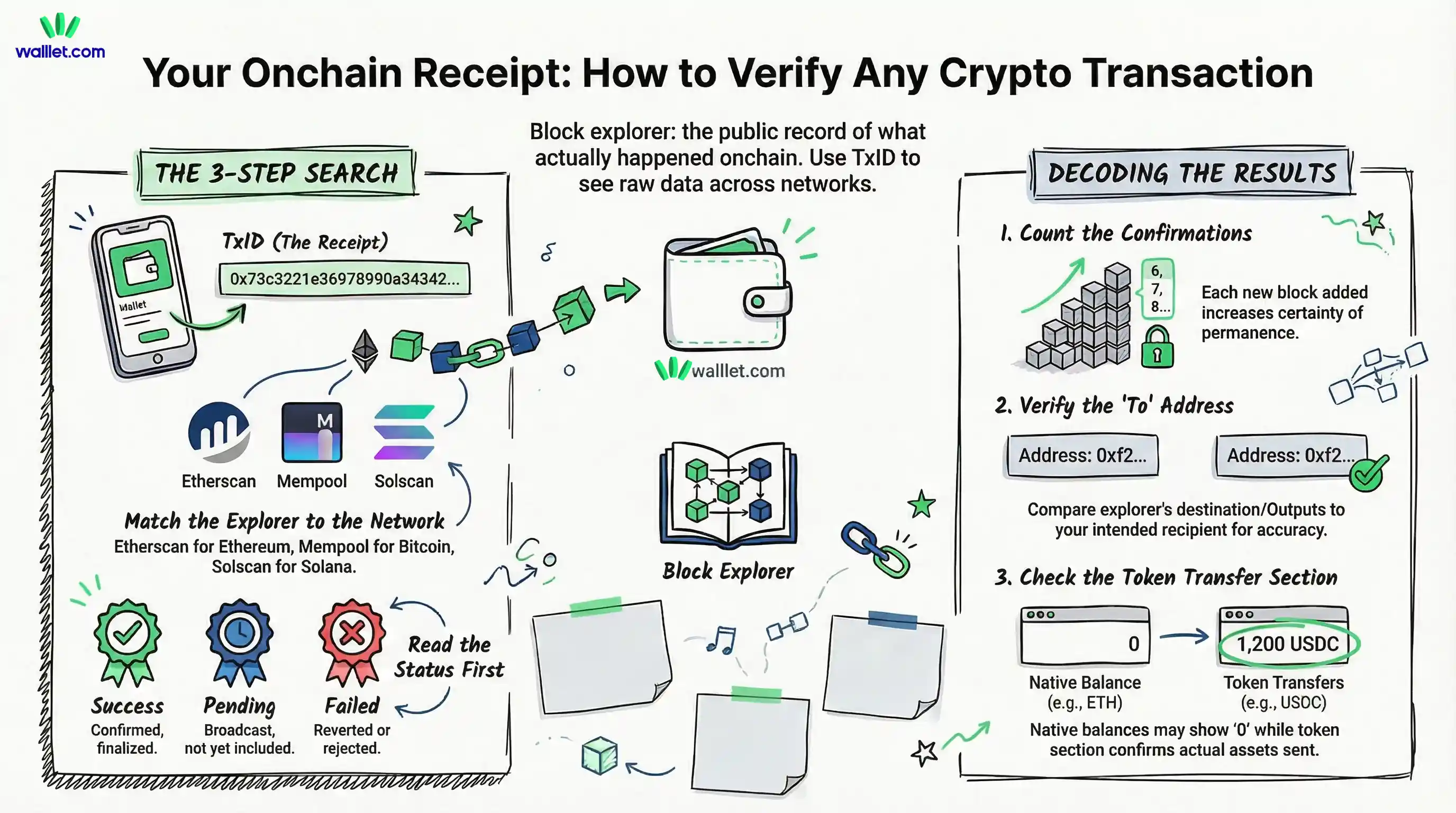
A wallet gives you a convenient view of your assets and activity. A block explorer gives you the raw onchain record. It is the place to verify what actually happened, when it happened, where the funds went, and whether the network considers the transaction confirmed.
Your wallet is where you act. The explorer is where you verify.
If you use walllet.com, this distinction matters. walllet is built to make crypto easier to understand before you approve a transaction, with more human-readable prompts and a simpler multi-chain experience. But once a transaction has been broadcast, the explorer is still the cleanest source of truth for checking the result onchain. That is especially useful when funds are delayed, a token is not visible, or someone asks you for a txid.
What is a block explorer?
A block explorer is a search tool for blockchain data. You paste in a transaction hash, address, block number, or on some chains an ENS-style identifier, and the explorer shows you what the blockchain recorded. Most explorers let you view transaction details, address balances, recent transfers, fees, timestamps, and block information.
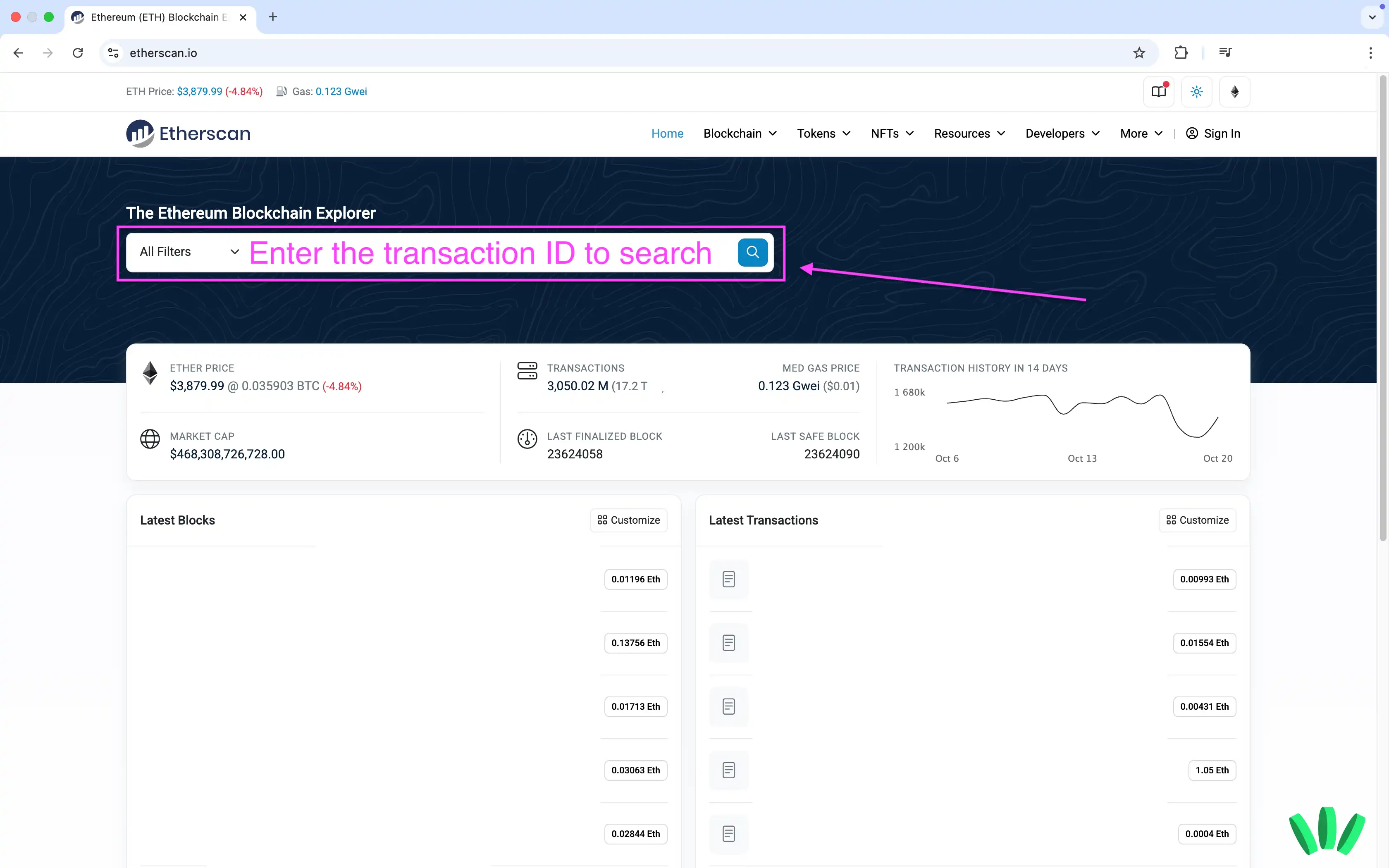
That last part matters more than people think. A wallet app can simplify, delay, or even temporarily fail to display data. A block explorer reads from blockchain data and shows the transaction record itself. When you want to answer “Did this really happen?” this is where you look first.
Popular examples include Etherscan for Ethereum and many EVM chains, Mempool.space for Bitcoin, and Solscan or Solana Explorer for Solana. Many wallets and exchanges also link directly to an explorer from the transaction details screen.
What is a txid?
A txid, also called a transaction hash or tx hash, is the unique identifier for one blockchain transaction. Think of it as the receipt number for an onchain transfer. Once a transaction is created, that hash becomes the easiest way to look it up on an explorer.
Different chains present this a little differently. On Ethereum and EVM chains, you usually see a transaction hash with a 0x prefix. On Solana, the transaction ID is typically shown as a signature. On Bitcoin, you will usually see a txid without the 0x prefix. Same job, slightly different outfit.
If support ever asks for proof of a send or receive, the txid is usually the first thing they want.
How to check a crypto transaction on a block explorer
Step 1: Find the transaction hash or wallet address
Start inside the wallet or exchange where the transaction began. Open the transfer details and look for one of these labels:
Transaction hash
Tx hash
Txid
Transaction ID
View on explorer
If you do not have the txid, you can often search by wallet address instead. That is useful when you are checking whether an incoming payment ever reached your address. Address lookup is also helpful if you only know the sender or recipient address and want to inspect recent activity.
Step 2: Open the correct explorer for the correct network
This is where people lose time.
The explorer has to match the chain where the transaction happened. Ethereum transactions belong on Etherscan or another Ethereum-compatible explorer. Bitcoin transactions belong on a Bitcoin explorer such as Mempool.space. Solana transactions belong on Solscan or Solana Explorer. If you search a Base transaction on an Ethereum explorer or a TRON transfer on a Bitcoin explorer, you are asking the wrong ledger the right question. It will not help.
If you are not sure which network was used, go back to the original transaction screen in the wallet or exchange and confirm the network there first.
Step 3: Check the status
Once the transaction page opens, find the status first.
This is the fastest way to understand where things stand.
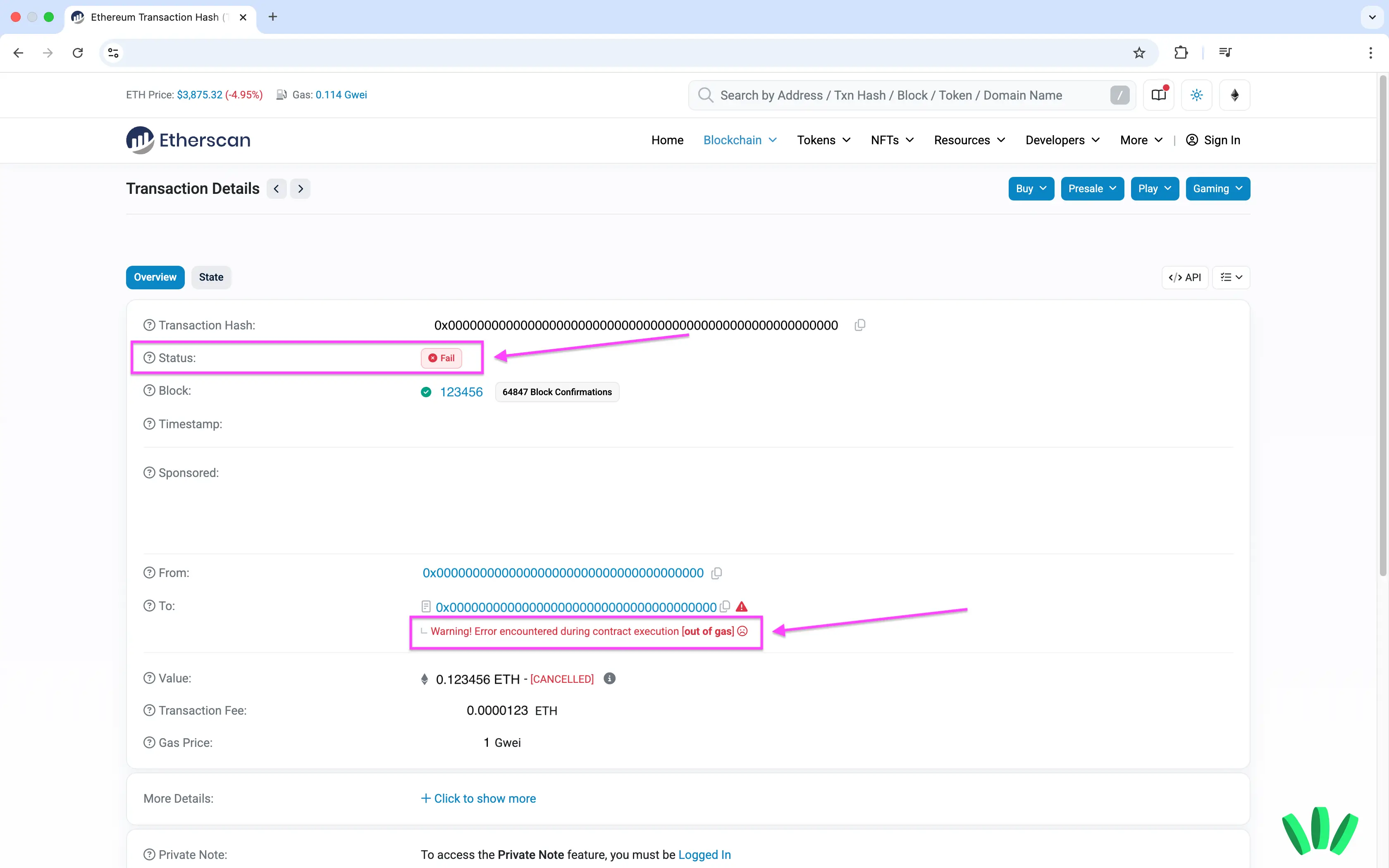
If the transaction is pending or unconfirmed, it has been broadcast but not fully included or finalized yet. On Ethereum-style chains, this can happen when the network is busy or the fee is too low. On Bitcoin, unconfirmed transactions sit in the mempool until miners include them in a block. On Solana, you may see status language around success and finalization.
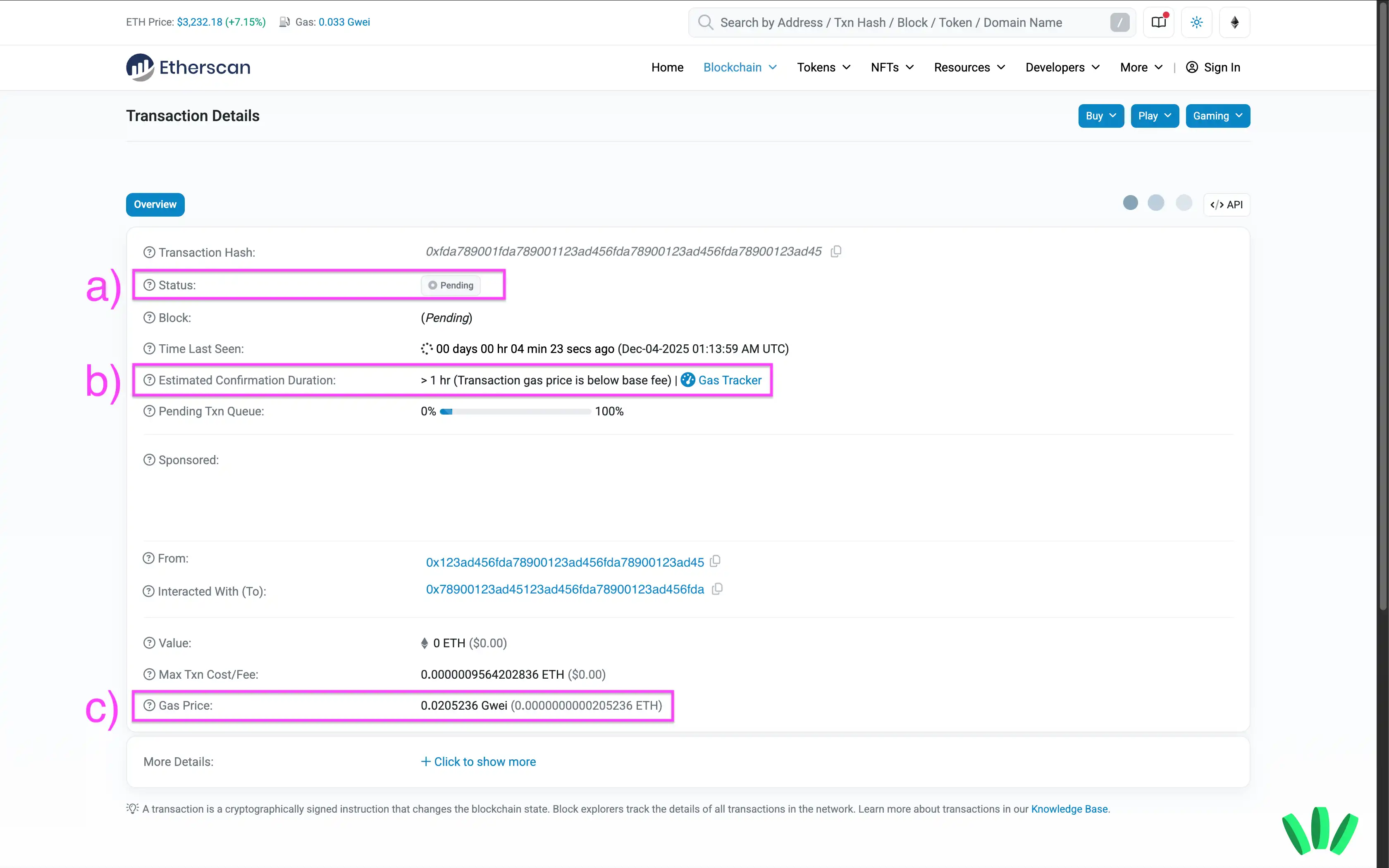
If the transaction is successful, that means the network processed it and recorded it onchain. That is a strong signal, but not the whole story. A successful onchain transaction does not always mean the receiving app has already shown the funds. More on that in a minute.
If the transaction failed, the chain rejected or reverted it. On some chains, especially smart contract chains like Ethereum, a failed transaction can still consume fees. Solana documentation also notes that transactions are atomic, so if one instruction fails, the whole transaction fails.
Step 4: Look at confirmations or finality
After status, look for confirmations.
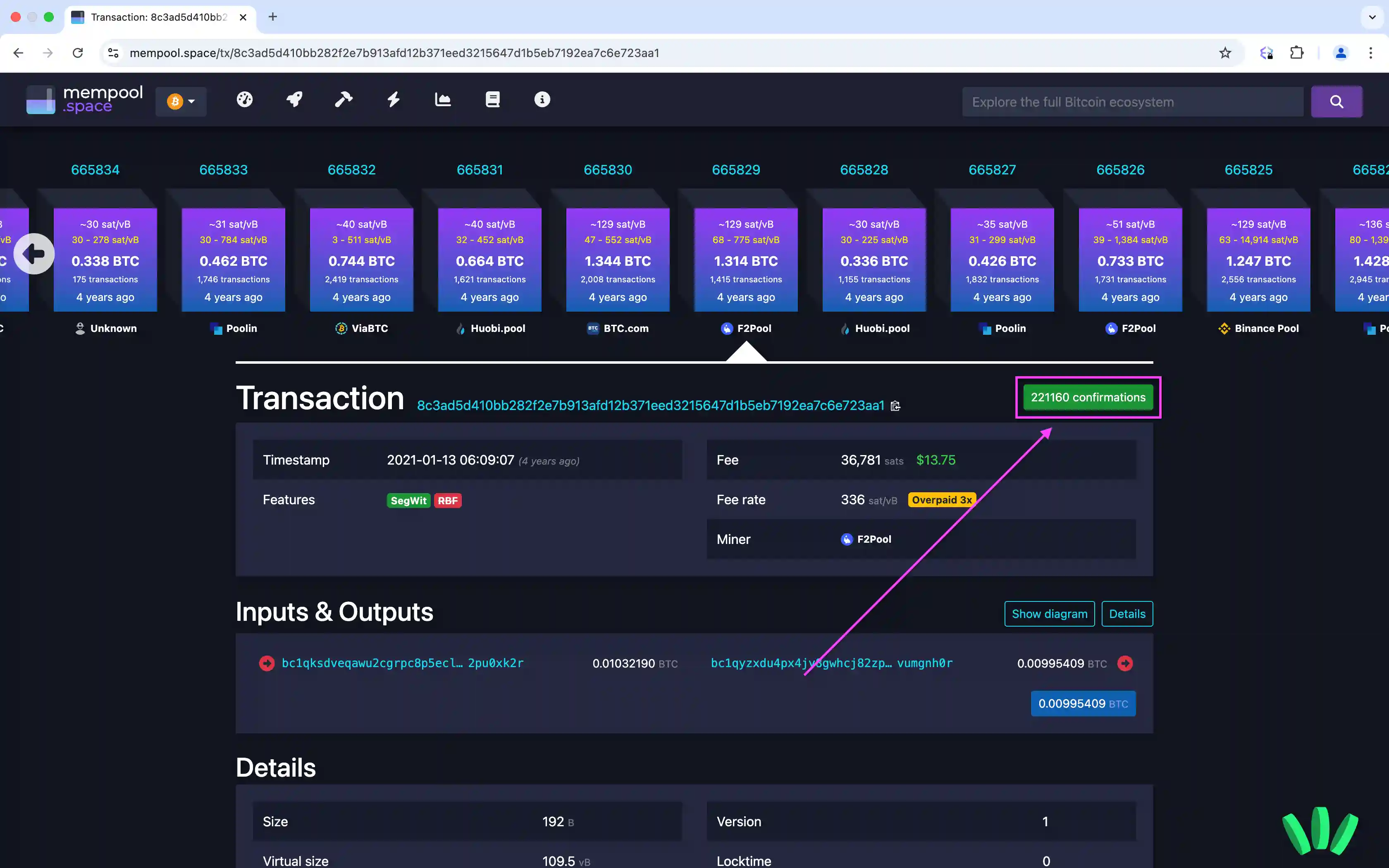
A confirmation means the transaction has been included in a block, and each later block adds another layer of certainty. An unconfirmed transaction is one not yet included in a block, and notes that every additional block adds another confirmation. Etherscan similarly explains that block confirmation count is the number of blocks processed since the block containing your transaction.
This is why two people can both be “right” at once. The explorer may show that a transaction exists, but an exchange or receiving platform may still wait for more confirmations before crediting the funds. Different services set different minimum thresholds.
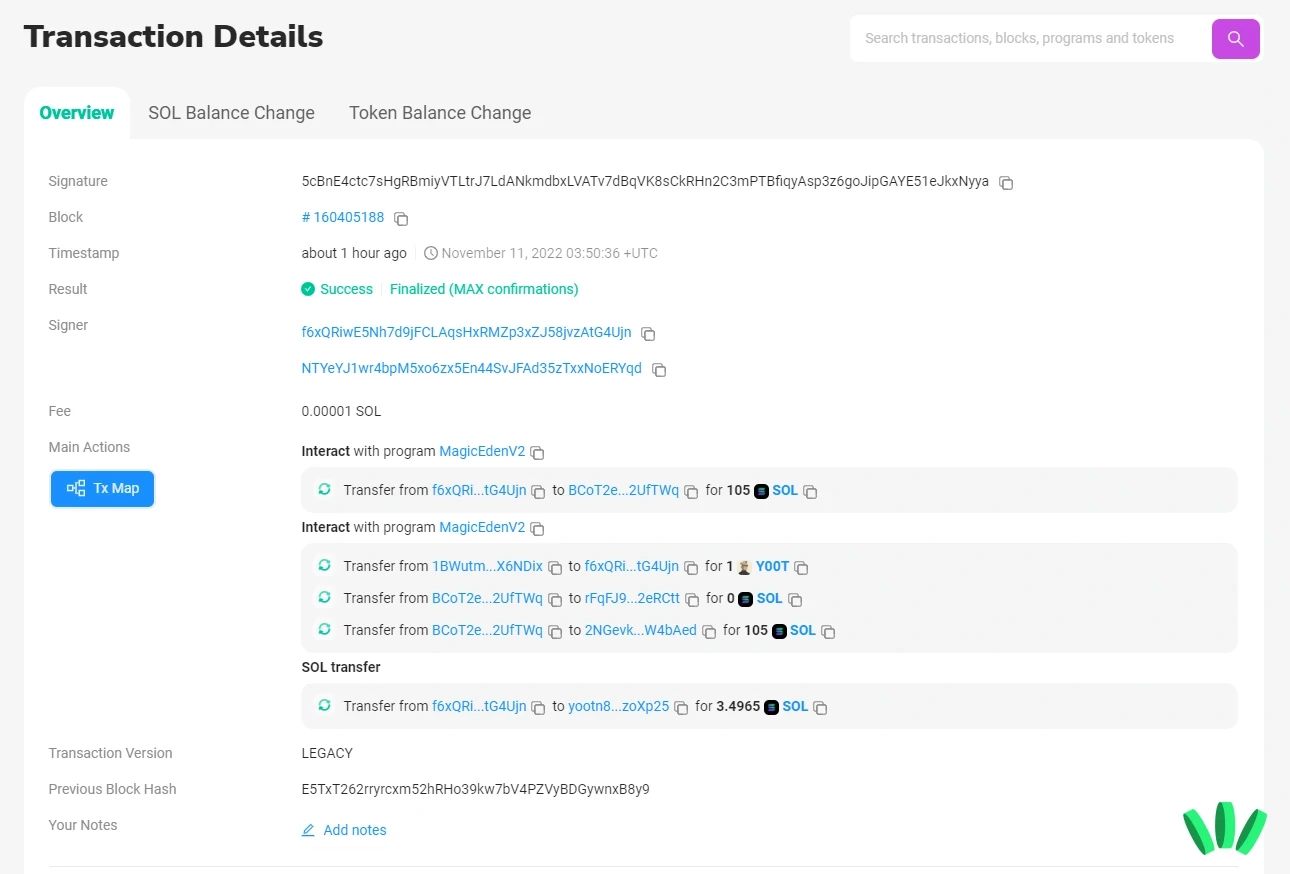
On Solana, you may see “Finalized” rather than a familiar confirmation count. Solscan describes Finalized as the signal that the transaction has already been validated by validator nodes. That is the status to look for when you want stronger certainty on Solana.
Step 5: Verify the sender and the destination address
Now check the actual addresses involved.
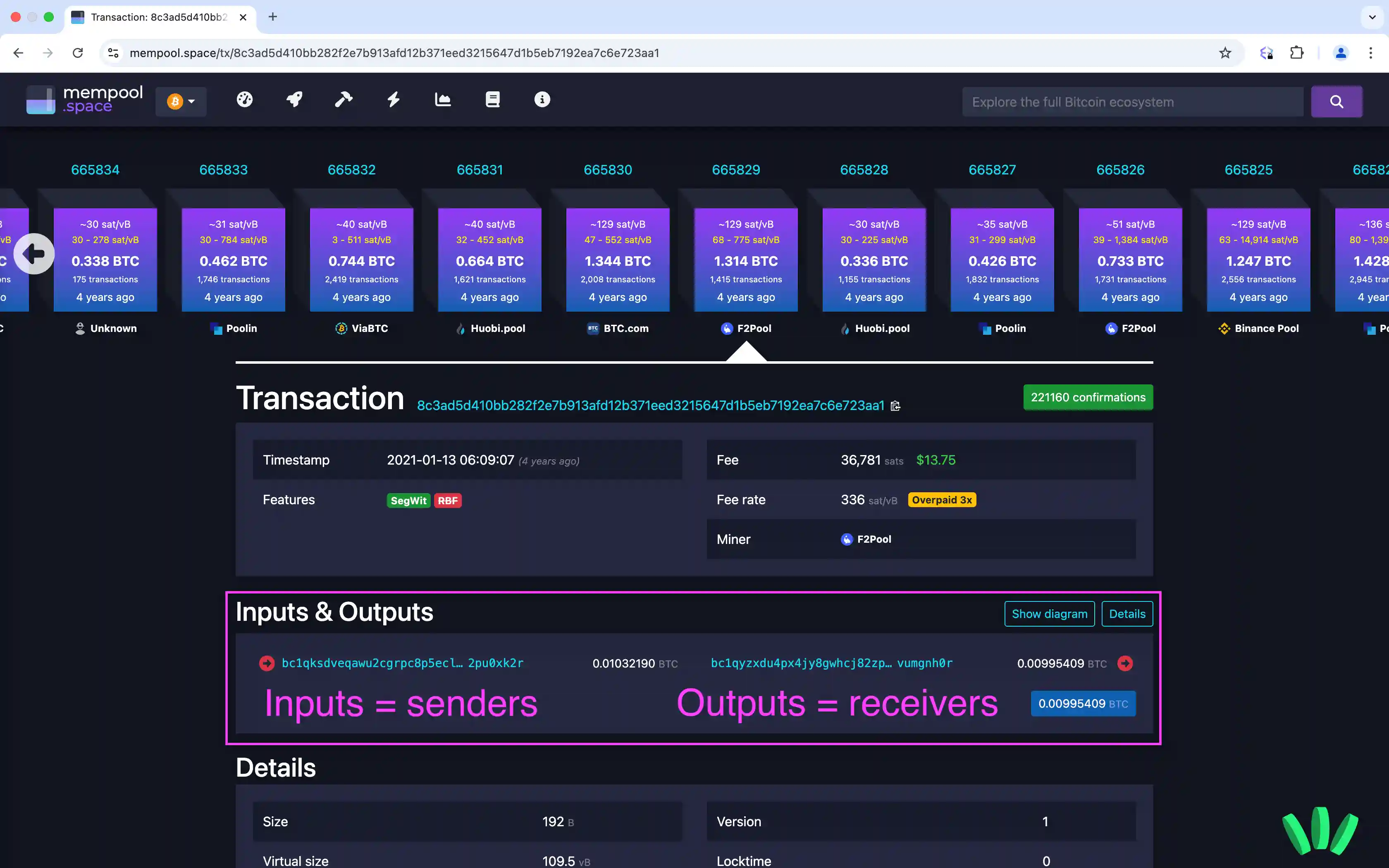
On EVM explorers, you will usually see a “From” address and a “To” address. On Bitcoin explorers, the structure is often shown as inputs and outputs instead of one simple sender and receiver. Exodus’s help guide uses exactly this logic when showing users how to verify whether funds were sent to the right destination: compare the intended address with the address shown in the transaction details, and on Bitcoin specifically review the outputs section to see where the funds were sent.
This step solves a surprising number of mysteries.
If the “To” address or output address does not match the destination you intended, the transaction did not go where you thought it did.
If it does match, you can stop blaming the blockchain.
Step 6: Confirm the amount and token
Next, confirm what moved.
Was it ETH, USDC, BTC, SOL, or a token contract interaction that transferred something else entirely?
Explorer pages usually show the native asset value, the token transfer details, and the fee. This matters because smart contract transactions can be a little sneaky at first glance. A page may show “Value: 0 ETH” while still displaying an ERC-20 token transfer such as USDC in the token transfer section. If you only look at the headline number, you can misread a perfectly normal token transfer as a failed send. Explorers like Etherscan and Solscan separate these details clearly once you know where to look.
Step 7: Check the fee and timing
Fees help explain speed.
If the transaction sat pending for a long time, congestion and fee settings may be the reason. Etherscan notes that how long a transaction takes is influenced by network traffic and gas fee, and Bitcoin’s mempool model also makes low-fee transactions more likely to wait longer.
The timestamp also matters. It tells you whether you are looking at something just broadcast a few moments ago or something that should have settled long ago.
Successful does not always mean ready to use
A successful transaction on a block explorer means the network processed the transaction. It does not always mean the receiving wallet app has already displayed the token, or that an exchange or payment platform has credited the account.
For freelancers, this distinction matters. If the explorer shows the payment reached your receiving address on the correct network, that is strong onchain evidence. But before you close the invoice conversation, still save the transaction hash, network, token, amount, date, and invoice reference.
If the explorer shows success but the funds are not visible in your wallet, the issue may be wallet display, token visibility, network view, or platform crediting. Do not panic. Check the network first.
If the funds are not visible after a successful transaction, read Sent Crypto on the Wrong Network? What You Can and Can’t Recover.
Where do I see confirmations?
Most explorers place confirmations near the top section of the transaction page, close to the status, block number, and timestamp.
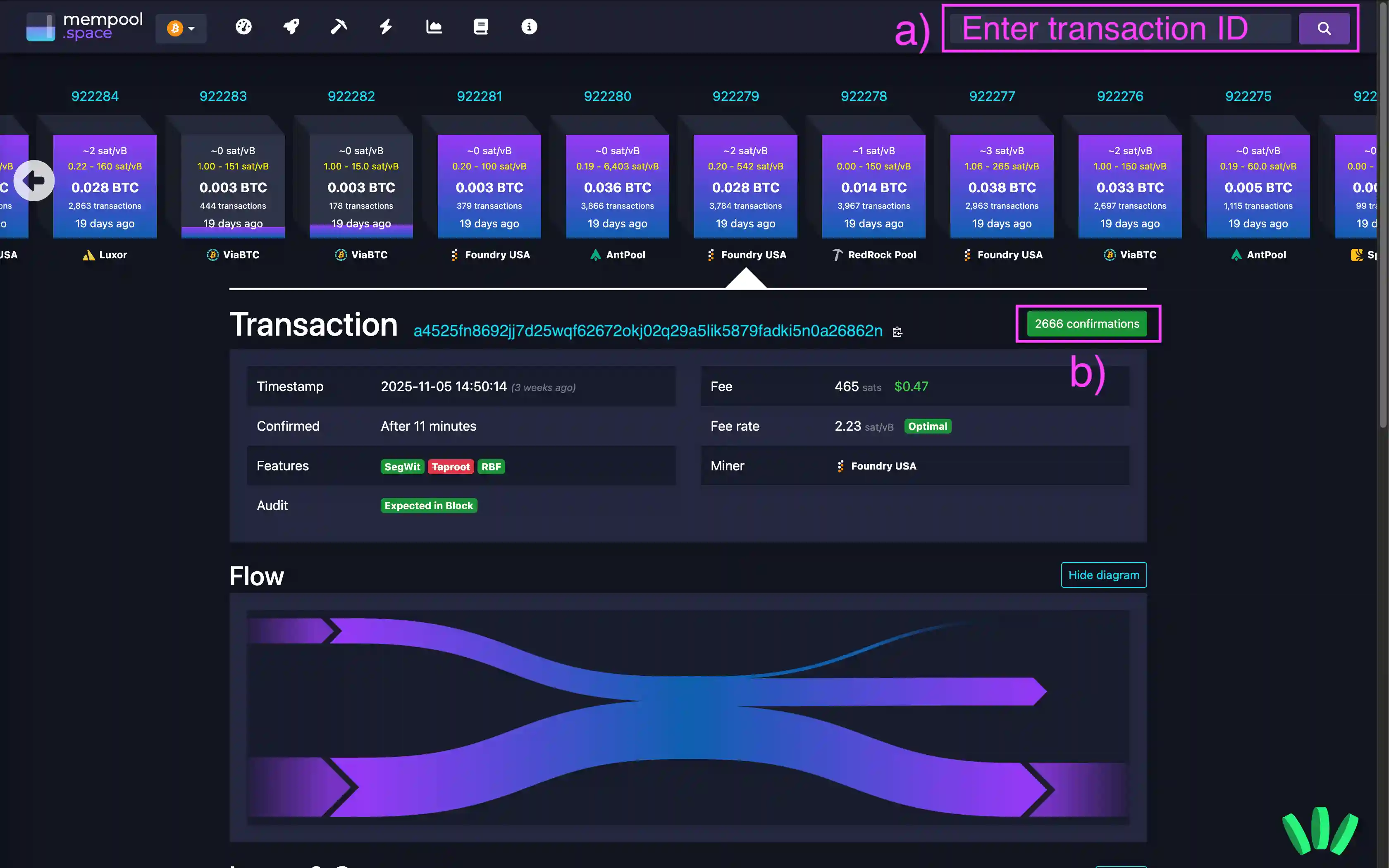
On Ethereum-style explorers, look near the transaction summary. On Bitcoin explorers, you will usually see whether the transaction is unconfirmed or how many confirmations it has. On Solana, look for result and finalization indicators. If the explorer shows the transaction in a block, that is your first confirmation. Each additional block strengthens finality on chains that use confirmation counts.
How do I verify the destination address?
Use a two-step check.
First, open the transaction itself and compare the destination shown on the explorer to the address you intended to send to.
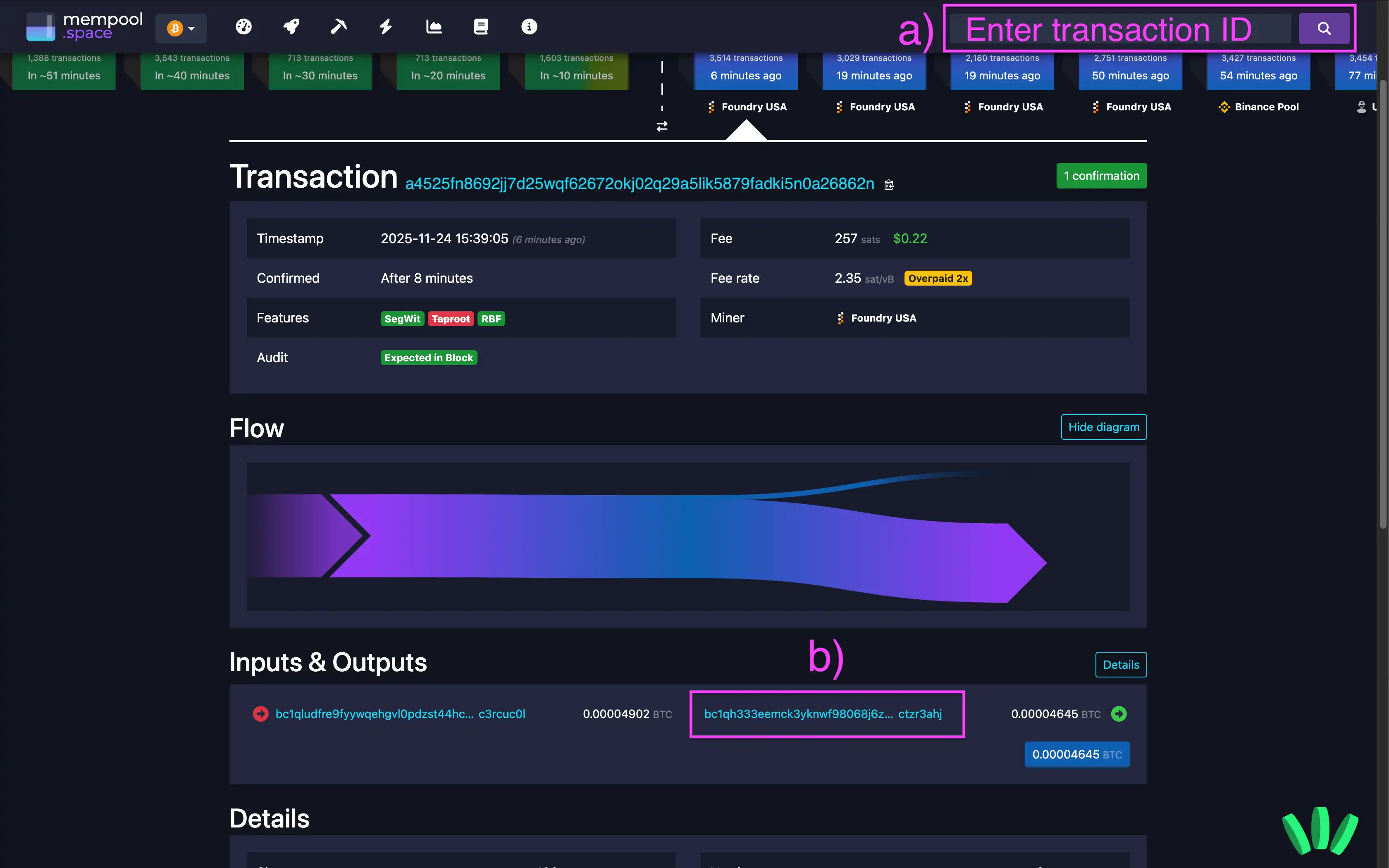
Second, search the destination address on that same explorer and inspect the address page. If the transaction appears in that address history, and the balance or token holdings reflect it, you have much stronger proof that the funds reached that address onchain. This is one of the most reliable ways to separate a blockchain issue from a wallet display issue.
Can a block explorer show if funds were delivered?
Yes, but you need to understand what “delivered” means.
A block explorer can show that a transaction was successfully recorded onchain and sent to a specific address. It can also show whether that address received the token on the relevant network. That is the blockchain part of delivery.
What it cannot prove on its own is whether the receiving wallet app has already indexed and displayed the token, whether an exchange has credited your account yet, or whether the recipient controls that destination address. So the better question is not “Was it delivered?” but “Was it delivered onchain to the address I intended?” The explorer can answer that very well.
Common block explorer mistakes beginners make
The first mistake is using the wrong chain’s explorer.
The second is checking only the top-level transaction value and missing the token transfer section.
The third is assuming success means the receiving platform has already credited the funds.
The fourth is checking only the first and last few characters of an address.
That habit is especially risky now that address poisoning scams are common again. If you are going to verify an address, verify the whole thing, or at least use a saved contact or trusted source. walllet.com has already covered this well in its address poisoning piece, and it is highly relevant here because explorer checks are often the last line of defense before you repeat a bad address.
Payment records for Nigerian freelancers and remote workers
For freelancers and remote workers in Nigeria, a stablecoin payment is not just a crypto transfer. It is income from a client. That means the payment record should be clean enough to understand later. After every client payment, save:
transaction hash
network
token
amount
date received
receiving address
invoice number
client name or project reference
explorer link, if useful
This record helps you review income, answer client questions, compare payment routes, and avoid depending on scattered screenshots across email, WhatsApp, Telegram, or invoice notes. Screenshots disappear into chat history. Transaction records are easier to check again.
walllet.com reducing confusion around approvals
A good wallet and a good explorer do different jobs.
walllet.com helps before you sign. Its value is in reducing confusion around approvals, making key transaction details easier to understand, and simplifying multi-chain usage for people who do not want crypto to feel like homework.
A block explorer helps after you send. It is where you verify the raw record, check the txid, inspect confirmations, confirm the destination address, and understand whether the transaction succeeded onchain.
That combination is powerful. Better prompts upfront. Better verification afterward.
If a user on walllet.com ever says, “I sent funds and something looks off,” the fastest healthy habit is this:
Open the transaction details, copy the tx hash, open the correct explorer, check status, confirmations, address, token transfer, and network. That five-minute habit saves hours of confused guessing.
The simplest way to read any crypto transaction
When in doubt, use this order:
What network is this on?
What is the txid or signature?
Is the status pending, success, failed, or finalized?
How many confirmations does it have?
What exact address did it go to?
What asset moved?
What fee was paid?
Does the destination address page show the transfer too?
Answer those seven questions and most crypto “mysteries” stop being mysterious. Before relying on a client stablecoin payment, verify the transaction hash on the correct explorer and save the payment record.
Before relying on crypto for client payments, make your receive flow easier to manage. Try walllet.com for a simpler wallet experience without seed phrases:
