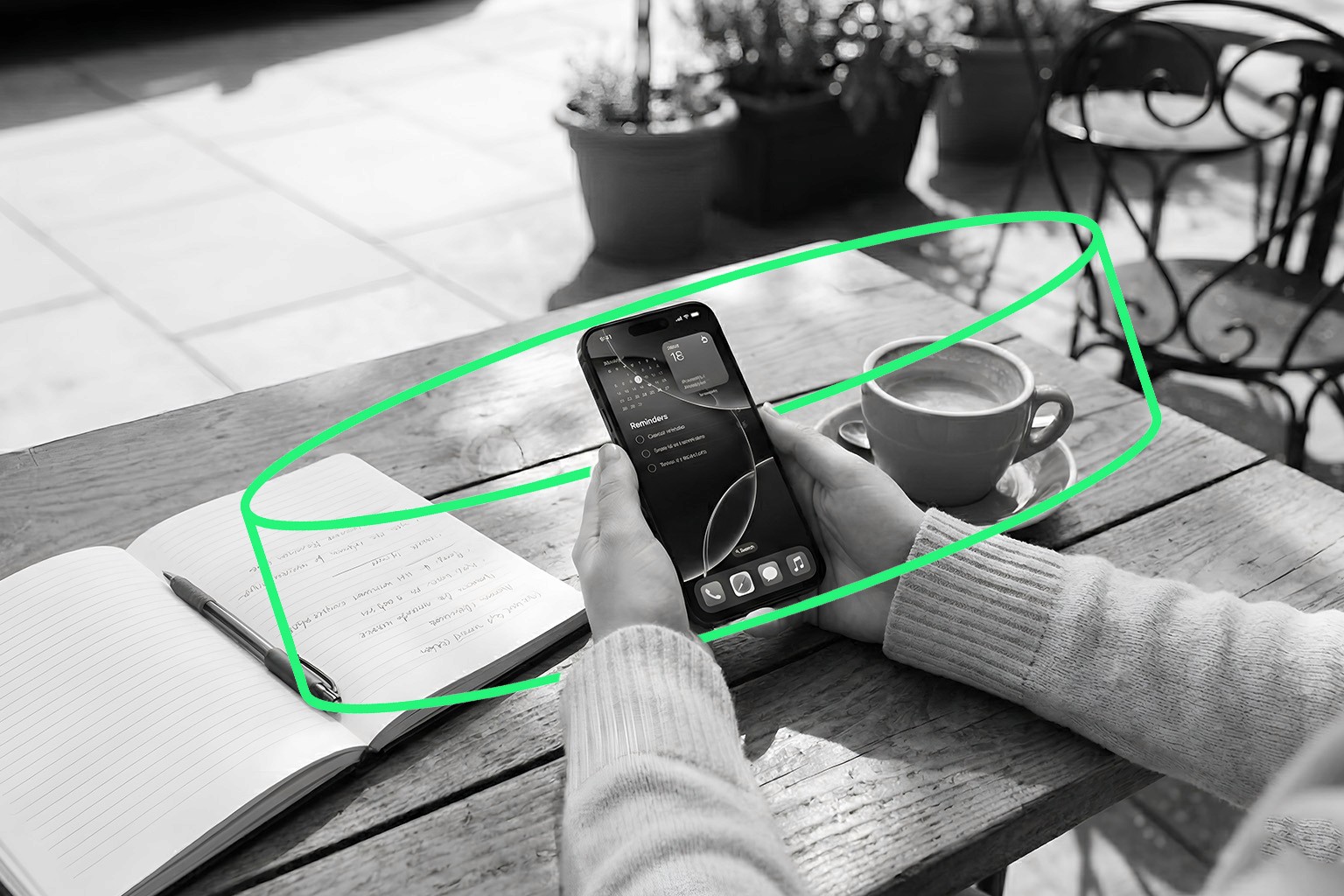
Passkeys are the new, safer way to create your crypto wallet, with cold wallet level security, without passwords, recovery phrases, or long codes. They protect your walllet using your fingerprint or face ID.
If you're using an iphone and haven't turned on passkey yet, this guide is for you. It’s quick, easy, and totally worth it.
Requirements:
An iPhone running iOS 16 or later
Face ID or Touch ID turned on
iCloud Keychain enabled
Two-Factor Authentication turned on for your Apple ID
iCloud Backup turned on (highly recommended)
All of this helps your passkey stay safe and follow you if you switch phones later.
A passkey is a digital key that lives on your phone. It works with your fingerprint or face to prove it’s really you, without needing a recovery phrase.
When you create your walllet, this passkey becomes your only way to access your money. No passwords to remember. No 12-word seed phrases to save. Just unlock your phone, and you’re in.
How to Check That Passkey on ios
To use passkeys with walllet, your iPhone needs to store them in iCloud Keychain (Passwords app). Here’s how to make sure everything’s ready:
Go to Settings
Tap your name at the top
Tap iCloud
Select Passwords and Keychain
Make sure both iCloud Keychain and Passkeys are turned ON
Go back and check that Face ID or Touch ID is enabled under Face ID & Passcode
Done! Your phone is now ready to create a passkey for your walllet.com
Now, Create Your walllet.com
When you open the walllet app and start creating your wallet:
Your iPhone will offer to create a passkey
Confirm it using Face ID or Touch ID
That’s it. Your passkey is now securely saved in your iCloud account and tied to your identity. You won’t need to remember anything.
🚫 Don't Delete Your Passkey
Here’s something really important:
Never delete the passkey from your phone.
Think of it like this:
Your passkey = your wallet's private key (recovery phrase)
If it’s gone, your wallet is gone
No one (not even the walllet team) can get it back for you.
We don’t store our users data so We can’t recover it. Only your device can unlock your wallet.
So:
Don’t delete your passkey
Don’t remove your Google or Samsung account
Don’t factory reset your phone without a backup
Got a New Phone? Here's What Happens
If iCloud Keychain (Passwords app) and iCloud Backup are turned on, your passkeys move with you. Just sign in to the same iCloud account on your new phone.
If you had no backup or disabled iCloud Keychain, the passkey (and your wallet) will be gone.
Final Thoughts
Passkeys are your key to a safer, simpler experience. They protect your walllet without the stress of passwords or recovery phrases.
Once it’s set up:
You don’t need to remember anything
You just unlock your phone
You're in control. nobody else
But remember:
Losing your passkey means losing your wallet.
Keep it safe. Don’t delete it. Don’t take risks.
